01 Set up
Start with your
school’s iPads.
Your IT team installs Tenet and connects it to your school’s settings.
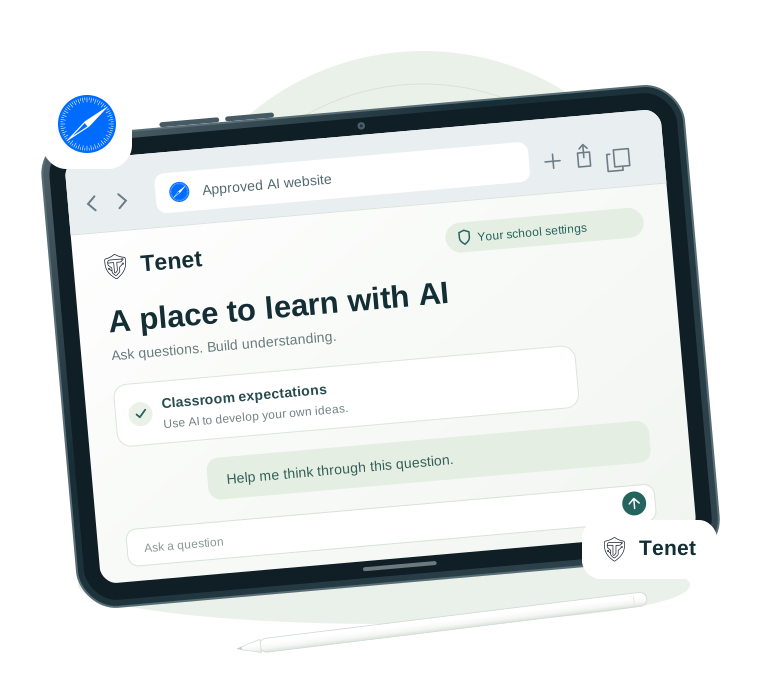
Students sign in with their school account and use approved AI websites in Safari. Tenet works as a Safari extension, also called a plug-in, to apply your school’s supported rules.
Tenet covers supported Safari websites. Other browsers and native AI apps need separate school controls.

Install Tenet
Connect the school’s settings.
Sign in
Use the school account.

Open approved AI
Tenet applies school rules.
More information · 01How to get Tenet onto an iPadPilot installation, Safari setup, and school deployment
For a pilot, Tenet provides the invitation and helps your IT team confirm the right app build and iPad setup. For a wider rollout, we agree the school’s managed installation route together.
Install the pilot app
- Get your invitation. Ask Tenet or your school IT team for the TestFlight invitation or school deployment link. An existing tester’s app link is not an invitation to join.
- Install Apple’s TestFlight. On the iPad, open the invitation and choose View in TestFlight → Accept → Install. If you already have the app, choose Update.
- Open Tenet and enable it in Safari. Follow the app’s setup guidance. On current iPadOS, go to Settings → Apps → Safari → Extensions → Tenet and turn on Allow Extension. Your IT team may manage this setting for you.
- Allow the approved websites. Grant Tenet access to the AI websites your school uses. Check the Safari profile used for schoolwork, and reload any AI tabs that were already open.
- Sign in and check the connection. Open Tenet from Safari, sign in with your school account, and confirm the expected school and role.
- Try one approved AI website. Check an allowed interaction and a school policy boundary with IT. Then close and reopen Safari to confirm sign-in, rules, and reporting recover as expected.
For school-managed iPads
Your IT team uses its device-management system to install the approved app, connect school settings, and enable the extension with the required website access. Tenet helps check these on a small group before the school expands.
IT requirement: Apple’s managed Safari extension controls use supervised iPads on iPadOS 18+. Tenet’s current managed-settings route needs iPadOS 18.4+ and configuration targeted at the extension. Confirm the MDM’s support with Tenet; app-only configuration does not reach the extension.
You’re ready when: Tenet is enabled, the student is signed in, and an approved Safari AI site follows the expected school rules.
Instructions: Apple TestFlight · Safari extensions on iPad · Managed Safari extensions
02 Choose the browser
Students use AI
in Safari.
Your school can allow AI in Safari with Tenet and block selected AI sites in managed Chrome.
IT uses supported Chrome settings in Google Admin for those restrictions. The school can also restrict unapproved browsers and native AI apps through its device controls.
Chrome rules must be configured and tested on school iPads. Keep Safari access open for the approved Tenet experience.
Safari + Tenet
The school’s approved AI path

Managed Chrome
AI sites blocked in managed Chrome
when school policy is applied
More information · 02Block AI sites in Google AdminA practical guide for your student Chrome policy
Apply these rules to the student group that should use Safari with Tenet. Keep teachers in a separate policy group when they need approved AI access in Chrome with Tenet.
For Google’s signed-in user-policy route, IT enables Chrome management for signed-in users and Chrome on iOS → Apply supported user settings to Chrome on iOS. This route depends on school-account sign-in. A school may instead use supported browser enrollment through its MDM and Chrome Enterprise Core.
- Open Google Admin. Sign in at admin.google.com with an administrator account.
- Find the browser settings. Go to Devices → Chrome → Settings → User & browser settings. In Chrome Enterprise Core, the route may appear as Chrome browser → Settings.
- Select the student pilot group. Choose the intended organizational unit or configuration group. Review inherited rules and any group overrides before changing them.
- Open Content → URL Blocking. Add the school’s selected AI domains under Blocked URLs, one per line. Preserve existing restrictions and review Blocked URL exceptions.
- Save, then refresh the test browser. Restart Chrome on the iPad. Policies usually arrive within minutes, but Google says changes can take up to 24 hours.
- Verify the policy and both browsers. In Chrome, open
chrome://policy, reload policies and checkURLBlocklist. Test the selected sites in Chrome, then confirm approved Safari access still works with Tenet.
Example AI domains
Choose the sites your school intends to restrict. This is a starting list, not a complete inventory of AI services.
chatgpt.com
chat.openai.com
claude.ai
gemini.google.com
copilot.microsoft.com
A plain hostname also matches its subdomains. Keep entries specific: blocking google.com would affect more than Gemini. Maintain the list as services and domain names change.
You’re ready when: the student’s managed Chrome blocks the chosen sites, approved Safari use works, and the teacher group retains its intended access.
Google guidance: URL blocking · URL filter syntax · Chrome on iOS policies · iOS browser enrollment · Policy scope and timing
03 Set class rules
Teachers manage class
settings from a laptop.
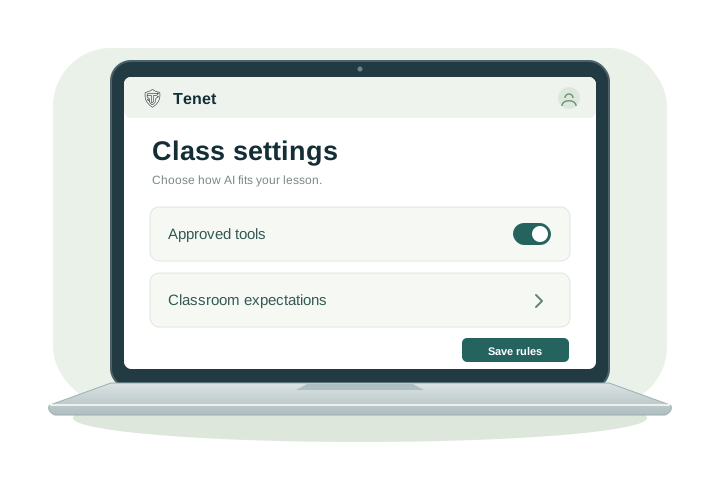
Open Tenet in the browser. Choose a class. Save the permitted settings.
Teachers use their school account and the school-approved Tenet extension. Class rules stay within district permissions and synchronize to connected, signed-in student iPads.
Teachers do not need to set up each iPad individually.
PII protection for teachers, too.
When your school enables staff privacy controls, Tenet checks supported AI prompts and file uploads for personal information and applies the configured warning, redaction, or blocking policy.
More information · 03Set up a teacher’s laptopChrome, Safari on Mac, class rules, and PII protection
Teachers can use Chrome on Windows or Mac, or Safari on Mac, with the school-approved Tenet extension. Their browser does not have to match the students’ Safari browser.
Chrome on a laptop
For the teacher: open the managed school Chrome profile. If Tenet is already installed, open it from the Extensions menu and sign in. If it is missing, ask IT for the school’s approved install route.
- IT selects the teacher organizational unit in Devices → Chrome → Apps & extensions → Users & browsers.
- Add the school-approved Tenet extension. For the self-hosted channel, use Add Chrome app or extension by ID, select a custom URL, and enter the Tenet-assigned extension ID and update feed.
- Set Installation policy → Force install, then save. Windows and Mac Chrome must be managed for the policy to apply.
- Restart Chrome, open Tenet, and sign in with the authorized school teacher account.
Tenet supplies the matching extension ID and updates.xml feed. Use the school’s assigned channel; do not mix the Chrome Web Store and self-hosted IDs or substitute a versioned .crx file. Desktop Chrome extension instructions do not apply to Chrome on iPad.
Safari on a Mac laptop
For the teacher: use the Tenet Safari app supplied through your school’s approved pilot or deployment route.
- Install or update the Tenet Safari app using the invitation or instructions from IT.
- Open Safari → Settings → Extensions and select the checkbox beside Tenet.
- Select Tenet, choose Edit Websites, and allow the school-approved AI websites. Check the Safari profile used for schoolwork.
- Reload open AI tabs, open Tenet, and sign in with the authorized school teacher account.
School management may control enablement and website permissions. Safari is the Mac option; use the school-approved Chrome extension on Windows.
Set the class rules
- Check your account. Open the Tenet dashboard and confirm your school, teacher role, and assigned classes. If a class is missing, ask your school administrator to check the roster and access.
- Choose the class. Adjust the platforms, class guidance, and other controls your district permits you to change.
- Save and check one student iPad. Connected, authenticated student devices receive the policy through Tenet. Test the intended behavior before using it with the whole class.
How teacher PII protection works
PII means personally identifiable information. With staff DLP enabled, Tenet can check for information such as email addresses, phone numbers, Social Security numbers, and student identifiers in supported AI prompts and uploads.
Your district chooses the response: review a redacted version, automatically redact detected information, or block the send. Some school policies allow an explained override; a hard block cannot be overridden. Use a synthetic test example with IT to confirm the configured experience.
Protection applies inside the enabled Tenet browser extension and supported AI flows. It does not scan every file or application on the laptop. Privacy controls alone do not grant access to class-management tools; those need the authorized teacher account and class membership.
You’re ready when: the teacher can see their classes, a saved rule reaches a test iPad, and the school’s teacher privacy policy behaves as intended.
Installation help: Google extension deployment · Force-install extensions · Safari extension setup
04 Keep school reports
Send reports to your
school’s storage.
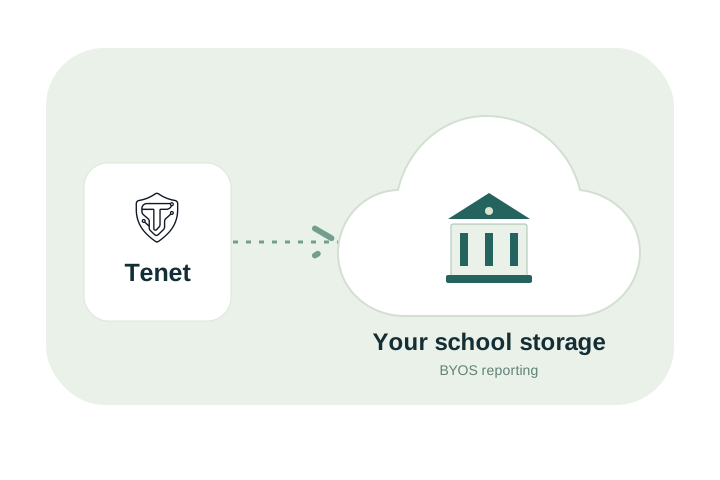
BYOS means Bring Your Own Storage.
Tenet sends the usage and incident data your school enables to its configured cloud storage. Your school controls access, retention, and deletion there.
Reporting needs a working connection and an active school sign-in.
More information · 04Connect your school’s storageChoose a provider and get setup help from Tenet
Your school owns the reporting destination. Caleb and the Tenet team can work with your IT team to choose the storage option, connect it, and verify that the expected records arrive.
Set it up together
- Choose the school-owned destination. Tell us which cloud platform your IT team already uses, who administers it, and which reporting requirements you have.
- Create a private bucket or container. IT chooses the region, access permissions, retention, and deletion rules. Keep permission to write reports separate from permission to read them.
- Connect the school’s Tenet configuration. An authorized administrator opens Analytics, Alerts & Data Connections in the Tenet admin dashboard. Select the S3/GCS or Azure Blob setup path and use the provider-specific instructions with Tenet’s help.
- Configure reporting and reader access. IT delivers the reporting writer settings through the school’s management configuration. Select the intended analytics backend and save the sync settings. Dashboard read credentials are separate; entering them alone does not enable device reporting.
- Agree what gets reported. Review usage and incident settings, authorized staff access, and whether the district wants optional redacted prompt excerpts. Records can include student and class identifiers.
- Test the connection and a real delivery. Run Test Connection, generate approved synthetic test activity from a signed-in test device, and confirm both that a record arrives and that authorized staff can read it.
We can help with the setup.
Bring your IT contact, preferred cloud provider, device-management platform, and reporting requirements. Caleb and the Tenet team can walk through configuration, troubleshoot the connection, and verify the pilot with you. Your school keeps control of its cloud account and data access.
BYOS is the configured reporting destination. Tenet’s authentication, policy delivery, and alert services remain separate. Live reporting requires the correct configuration, connectivity, and an active authenticated session.
You’re ready when: a test record reaches the intended private destination, the right staff can read it, and the school has agreed its retention and access settings.
Before the school rollout
Try a small pilot.
Check the whole path.
Tenet and your IT team confirm the school’s setup before expanding.
- Tenet is installed, enabled, and signed in on the iPad.
- Approved AI sites follow school rules in Safari.
- Chrome and other app restrictions work as intended.
- A teacher’s saved rule reaches a student iPad.
- Expected reports arrive in the school’s storage.
- Sign-in, rules, and reporting recover after a restart.
Technical details for ITApple setup, Chrome policies, and reporting details
Apple deployment
Confirm the app build, distribution route, iPad model, operating system, supervision, and device-management platform with Tenet. TestFlight can be used for a beta pilot; the production distribution route is agreed with school IT.
Apple’s managed Safari extension controls support always-on enablement and website permissions on supervised iPadOS 18 or later. The current Tenet managed-configuration path separately uses ExtensionConfigs on iPadOS 18.4 or later. Configuration must reach the extension; classic app configuration sent only to the containing app is insufficient. Confirm both enablement and configuration delivery in your MDM. Apple extension management · Managed app configuration
Chrome restrictions
In Google Admin, use Devices → Chrome → Settings → Users & browsers → Content → URL Blocking for the selected school group or organizational unit. Examples include chatgpt.com, claude.ai, gemini.google.com, and copilot.microsoft.com. This is an illustrative list; maintain it for your school. Google URL blocking
Chrome on iPad supports applicable signed-in user policies through Chrome Enterprise Core when Chrome on iOS policy application is enabled. Check each setting’s iOS support. Where supported, MDM enrollment using CloudManagementEnrollmentToken provides browser enrollment without relying only on user sign-in. Test the school’s actual managed iPad, including signed-out behavior. User policies · Chrome on iOS enrollment
Teacher access and school data
Teachers use the extension’s dashboard with authorized school accounts. Their laptop browser does not have to match the student’s Safari browser. Class edits remain within district permissions.
Configured BYOS records may contain student and class identifiers. Redacted prompt excerpts require district opt-in. Authentication, policy delivery, and alert services remain separate from BYOS reporting storage.
Sign-in and restart checks
Safari attempts silent Google re-verification when the Google session is available. If recovery fails, an eligible student may retain cached protection, but live reporting and current policy updates require an active authenticated connection. Test Safari closure, device restart, touch input, keyboard input, and each required AI site during the pilot.
Guide updated November 6, 2026